

In my last post (Workbook Information Functions (Part 1)) I described three custom LAMBDA() functions which could be used to dynamically get useful information about a referenced Excel file, such as:
- Worksheet name;
- Workbook name and file type extension; and
- file path.
These three functions are relatively simple, work in very similar ways, and are complimentary. As such, they are a great candidate to demonstrate how a module of LAMBDA() functions can be created and maintained using the Excel Labs Advanced Formula Environment.
Excel Labs Advanced Formula Environment
Excel Labs is a free Excel add-in created by the Microsoft Garage Projects team. It can be downloaded from Microsoft AppSource and once installed can be accessed via a new “Excel Labs” button on the Excel Home ribbon.

The Excel Labs add-in has three elements to it:
- Advanced Formula Environment (AFE)
- LABS.GENERATIVEAI function
- Python Editor

My preference is to set the AFE as the default feature for Excel Labs so this is what opens automatically when I open Excel Labs. The Python Editor is excellent, but since Excel added a Python editor to standard Excel it is no longer really needed. Similarly, the LABS.GENERATIVEAI() function is fun to play around with, but I rarely ever use it and the page that opens from the Excel Labs add-in is only a setup and settings window so is not needed that often.
The AFE window provides three tabs within the top green ribbon:
- Grid
- Provides a formula editor for the cell that is currently selected.
- The formula editor is more like a traditional code IDE with auto-completion, syntax suggestions, syntax highlighting, error highlighting, and code commenting.
- There is also a formula debugger for your standard Excel formulae which shows you the steps in the formula being edited in execution order and the result at each stage.
- Names
- Provides a manager and editor for defined names.
- The defined names are split by type/category into Functions, Ranges, Formulas, and Modules.
- Modules
- Provides an IDE and editor for each module of defined names/functions.
- In this format, each module is shown as a single text file with the defined function that make up the module included in the same text file in a set format.
- By using a module, users can import multiple functions together as a single block of text or from a single Gist URL.
LAMBDA() Modules
In the Excel Labs AFE, modules are presented as a single block of text, similar to a single text file in Notepad, which can use line breaks and tab characters to format the text. Each function defined and stored within the module follows the format of:
Function_Name = LAMBDA(
  ...
);
You can choose to either add individual functions to the general Workbook module, in which case they will use the name that they are declared with (e.g. =Function_Name() ), or you can add them to a defined module, in which case the function is used with module name and the function name, e.g. =Module.Function_Name().
The AFE allows for the use of code commenting which can help in documenting and explaining any custom functions you create. The comments can be made as individual new lines with the “//” characters, they can be added to the end of a line of code again using the “//” characters, or you can create a multi-line block of comments using the “/*” characters at the start of the block and ending with “*/“.

As can be seen in the image above as well as allowing for code comments the AFE editor will colour different syntax elements of a formula code to help distinguish them when reading and editing a formula. The editor also provides auto-completion suggestions as you type and will highlight any formula errors with red underlining to help in debugging your code as you type.
When the AFE is used in this way to create or edit a custom function, the contents of the AFE formula editor window are saved within the Excel file that you are using in its fully formatted version including any new lines, indentation, and code comments. When you then save the edited function (using the save button in the Excel Labs ribbon), a further copy of the code for each function is created, where all code comments are removed along with superfluous formatting characters, and this copy is saved as a standard Excel Defined Name. It is the Defined Name version which is then used by the Excel file when the user uses a custom function in a worksheet formula as the code comments are not allowed in a valid defined function.
As such, it is important that if you are using the AFE to create custom functions that any editing of these functions is performed in the AFE editor window rather than directly in the Excel Name Manager otherwise the version of the function code seen in the AFE may not match that seen in the Name Manager and any changes made to a function in the Name Manager will be over-written by the AFE the next time the module/function is saved.
A major advantage of using Excel Labs for custom functions is how easily they can be added and shared particularly for whole modules of functions. The user can either copy the full commented code for a function or module of functions and paste this directly into the AFE editor window or download the code from a GitHub Gist URL. This means that a repository of finalised and maintained functions can be hosted online and then users can simply import the required functions/modules for their project from the appropriate Gist URL. Once imported from the URL, the functions and any comments are stored in the Excel file and access to the internet and Gist is no longer required in order to use the function(s) in that Excel file.
Function Documentation
An important aspect of the native Excel functions is the readily available documentation. If you are unsure of how an Excel worksheet function works, or what an error code might indicate, a quick Google search will lead you to not only to the official Microsoft documentation, but also a list of third party articles and videos explaining how to use that function and its input parameters.
This is where any custom functions can fall down if you intend to share them with others or include them in projects that will not be maintained by the function author.
Potential options for providing documentation for your custom functions include:
- Name Manager
- As custom
LAMBDA()functions are defined as Names, you can use the Comments property for the name to add descriptive text. This Comment text will be saved with the function within the Workbook and so accessible to all users who access the file. - However, there is a limit on the string length that you can save in the Comment property of 255 characters. Additionally, although you can use new lines / line breaks, they will be counted in your character limit and are not displayed as line breaks when accessed so are not ideal for function help documentation.
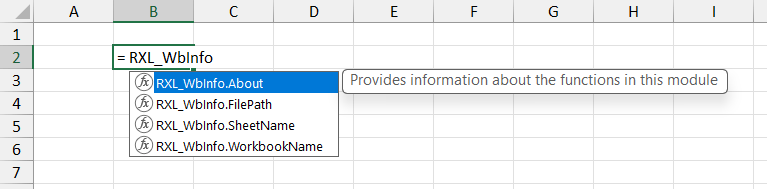
- The Comment property does have its place though, as the text in the Comment property for a defined custom function will be displayed when the user choses your function in a formula, and so can be useful brief descriptor of the functions intended use
- As custom


- Excel Labs Advanced Formula Environment Modules
- As discussed above, the Excel Labs AFE allows for extensive and formatted code commenting. This means that you can provide all of the necessary code commenting you might want within the function and module definition code.
- This code commenting is saved in the Workbook along with the defined function(s) and so is accessible to anyone with a copy of the file. However, it requires use of the Excel Labs add-in to access and needs the user to know how to access the information.

- Online documentation (e.g. Gist / GitHub)
- Another option would be hosting documentation for any custom functions in the same place that they are hosted. For example, I have taken to creating individual Gists for each new function or module that is created. This allows for the help documentation to be hosted in the same place that code for the function is hosted.
- I also use a public GitHub repository to host copies of Excel files which contain copies of my custom functions along with development information and help documentation within the same file.
- The main issue with these methods is that the documentation is not stored with the function in the Workbook where the functions are being used. Therefore, the user needs to know where to look for the information. Although, pointing the user to a URL is much easier than some other methods, and could be easily incorporated into a defined Name Comment property for example.
- The
.About()Function- When I first saw Craig Hatmaker’s take on this problem I was impressed and inspired (see my earlier post in which I talk about Craig Hatmaker’s 5G project). He chose to incorporate the function help information into the function itself — all of the parameters for the function are made optional and if the user omits all inputs (i.e. simply
=MyFunction()) then the function outputs an array of help information, telling the user what the function does and what the expected input parameters are. - For my own functions, I chose not to take this approach as I wanted to keep the distinction of required and optional parameters, and I felt that including the required extra code for this functionality would make all of the functions overly long, especially as I wanted to include input validation and error handling.
- Instead, for my function modules I chose to add an extra
.About()function to the module which could provide useful information about the module itself as well help documentation about each of the functions in the module.
- When I first saw Craig Hatmaker’s take on this problem I was impressed and inspired (see my earlier post in which I talk about Craig Hatmaker’s 5G project). He chose to incorporate the function help information into the function itself — all of the parameters for the function are made optional and if the user omits all inputs (i.e. simply
About() Function
For the .About() function, the idea was to use a single optional select_function parameter, which can be used to choose the function in the module to provide information about.
- If the optional
select_functionparameter is omitted, then the function returns information about the module including the names of the included functions and an index number for each. - If the optional
select_functionparameter is provided as a number, then the function returns the information for the corresponding module function. - If the optional
select_functionparameter is provided as a text string, then the function will try to match the input string against the list of included function names and return information on the matching module function.
Below is an example of an About() function implementing the above approach for a module containing three custom functions.
= LAMBDA(
  // Parameter declaration
  [select_function],
  // Main function body
  LET(
    // Deal with the optional input parameter;
    // determine if the input is omitted, or if a number or text is supplied
    _num, IF( ISOMITTED(select_function), 0,
      IF( ISNUMBER(select_function), INT(select_function), "#")
    ),
    // Create the output array for information about the module as a whole as required
    _arrDef, IF(_num = 0, TEXTSPLIT(
      "About:¬RXL example functions.|" &
      "¬Suggested module name = RXL_Demo|" &
      "Version:¬v1.01  (March 2025)|" &
      "Author:¬R Silk, RXL Development|" &
      "URL:¬https://gist.github.com/...|"&
      "¬|" &
      "Function¬Description|" &
      "0 - About¬Provides information about the functions in this module|" &
      "1 - Demo_One¬Description of the action of the Demo_One function|" &
      "2 - Demo_Two¬Description of the action of the Demo_Two function|" &
      "3 - Demo_Three¬Description of the action of the Demo_Three function",
      "¬", "|"),
      ""
    ),
    // Creates an array of the function names in the module to match user input against
    _arrNames, TEXTSPLIT(
      "Demo_One¦" &
      "Demo_Two¦" &
      "Demo_Three",
      "¦"
    ),
    // Creates the array of function documentation
    _arrHelp, TEXTSPLIT(
      "NAME:¬Demo_One|" &
      "DESCRIPTION:¬Description of the action of the Demo_One function|" &
      "VERSION:¬v1.01  (09-Mar-2025)|" &
      "PARAMETERS:¬|" &
      "range¬(required) A valid cell reference, e.g. 'Sheet1'!A1" &
      "¦" &
      "NAME:¬Demo_Two|" &
      "DESCRIPTION:¬Description of the action of the Demo_Two function|" &
      "VERSION:¬v1.01  (09-Mar-2025)|" &
      "PARAMETERS:¬|" &
      "range¬(required) A valid cell reference, e.g. 'Sheet1'!A1|" &
      "multiplier¬(optional) A number to multiply the sum result by" &
      "¦" &
      "NAME:¬Demo_Three|" &
      "DESCRIPTION:¬Description of the action of the Demo_Three function|" &
      "VERSION:¬v1.01  (09-Mar-2025)|" &
      "PARAMETERS:¬|" &
      "range¬(required) A valid cell reference, e.g. 'Sheet1'!A1|" &
      "multiplier¬(optional) A number to multiply the sum result by|" &
      "as_text¬(optional) Choose whether to output the result as text (True/False)",
      "¦"
    ),
    // Attempts to select the chose function and then
    // splits the information string into an output array
    _arrOut, IF(_num = "#",
      LET(
        _idx, SUM( SEQUENCE(1, COUNTA(_arrNames)) * (_arrNames = select_function)),
        IF(_idx > 0, TEXTSPLIT( INDEX(_arrHelp, _idx), "¬", "|"), "#[Error: name not recognised]")
      ),
      IF(_num <> 0, IFERROR( TEXTSPLIT( INDEX(_arrHelp, _num), "¬", "|"), "#[Error: index not recognised]"),
      "")
    ),
    // Selects whether to output the general module information (_arrDef)
    // or the selected function information (_arrOut)
    IF(_arrDef = "", _arrOut, _arrDef)
  )
)
The About() function works by accepting a user input as either an index number or function name as text and then returning an output array of information for the chosen function.
In order to reduce the number of named variables in the function and to keep the approach flexible/dynamic, the output information is stored as long text string with special characters used to indicate the separation by index (“¦“), new line (“|“), and column (“¬“). The strings are concatenated using the & operator to make the overall writing and editing more user friendly and to make the code more readable.
First (lines 8-10), the function determines whether a value has been supplied for the optional select_function parameter, and if so whether the value is a number, otherwise it is assumed to be text.
If no input has been supplied, then the general module information string is converted to a readable output array (_arrDef) using the TEXTSPLIT() function (lines 12-26). This default output provides the user information on the module name, module version, etc., as well as the included function names with a brief description of each module and an index number. The output array follows a simple two column structure to make it easier to read, with a title or topic in the first column and the detail in the second column.
Next, the function creates an array of the function names (_arrNames) using the TEXTSPLIT() function (lines 28-33), which is used to match a passed function name (where the select_function input is a non-number) and determine the correct function index.
In lines 35-57, the main function help information is split into individual strings with one string per function using the TEXTSPLIT() function (_arrHelp) and based on the separation between functions using the “¦” character.
Once the _arrHelp array has been created, the required function index is determined using the _num variable (if a number was supplied) or the _idx variable (if a function name was supplied), and attempts to select the required function information string from _arrHelp using a simple INDEX() function call. This selected function information string is converted to an output array (_arrOut) using the TEXTSPLIT() function (lines 60-67), again following the same two column format, where the “¬” character denotes a new column and the “|” character denotes a new line / new row.
Finally, the function either returns the created output arrays _arrDef or _arrOut depending on whether or not the user supplied an input value for the optional select_function input parameter (line 70) .
Workbook Information Module (RXL_WbInfo)
Below is the final, combined LAMBDA() module which incorporates the About() function, along with the SheetName(), WorkbookName(), and FilePath() functions.
The functions are shown in outline only, concentrating instead on the format and structure of the comments, documentation, and definitions. (Details on the contents of the module functions can be found above for the About() function and in the Workbook Information Functions (Part 1) post for the other functions).
/*
    MODULE:     RXL_WbInfo
    AUTHOR:     R Silk, RXL Development
    WEBSITE:    https://excel-bits.net
    GIST URL:   https://gist.github.com/r-silk/9c18090f60ffe442b7d22e6058e83e4a
    VERSION:    1.06 (Apr-2025)
*/
/*
    Name:        About()
    Version:     1.10 (23-Apr-2025) -- R Silk, RXL Development
    Description: *//**Provides information about the functions in this module*//*
    Parameters:
        + select_function   = (optional) the name or index number of the function that user wants information about
    Error codes:
        #[Error: name not recognised]   = the provided name string does not match those in the module
        #[Error: index not recognised]  = the provided index number does not match those in the module
    Notes:
        - if the select_function input is omitted or an index of 0 is provided then a table of information about the module is returned
        - the user can either provide the index of the chosen function as an integer (1+), or the name of the chosen function as a string

*/
About = LAMBDA(

  ...

);

/*
    Name:        SheetName()
    Version:     1.04 (23-Mar-2025) -- R Silk, RXL Development
    Description: *//**Returns the worksheet name (as displayed in the worksheet tab) for the cell reference provided; Workbook must be saved first*//*
    Parameters:
        + cell_ref      = (required) A valid cell reference, e.g. A1, or 'Sheet1'!A1
    Error codes:
        #[Error: cell reference required]   = the cell_ref parameter requires a valid cell reference
        #[Error: Workbook must be saved]    = the Workbook file must be saved first in order for the function to work correctly
        #[Error reading Sheet name]         = an error occurred getting the filename string or extracting the worksheet name from the filename string
    Notes:
        - The function outputs custom error messages as strings; these will not be flagged by Excel or any add-ins as error cells.
        - Alternatively, the custom error messages can be replaced with native Excel error codes so that the error is flagged in the normal way;
          to do this:
            -- replace the "#[Error: cell reference required]" string with the #VALUE! (or #REF!) error code
            -- replace the "#[Error: Workbook must be saved]" and "#[Error reading Sheet name]" strings with LAMBDA(0) in order to create a #CALC! error code
*/
SheetName = LAMBDA(

  ...

);

/*
    Name:        WorkbookName()
    Version:     1.05 (23-Mar-2025) -- R Silk, RXL Development
    Description: *//**Returns the Workbook name, with or without the file extension, for the cell reference provided; Workbook must be saved first*//*
    Parameters:
        + cell_ref          = (required) A valid cell reference, e.g. A1, or 'Sheet1'!A1
        + remove_extension  = (optional) A TRUE/FALSE or 1/0 value to determine whether to remove the file extension from the workbook filename
    Error codes:
        #[Error: cell reference required]   = the cell_ref parameter requires a valid cell reference
        #[Error: Workbook must be saved]    = the Workbook file must be saved first in order for the function to work correctly
        #[Error reading Workbook name]      = an error occurred getting the filename string or extracting the Workbook name from the filename string
    Notes:
        - The function outputs custom error messages as strings; these will not be flagged by Excel or any add-ins as error cells.
        - Alternatively, the custom error messages can be replaced with native Excel error codes so that the error is flagged in the normal way;
          to do this:
            -- replace the "#[Error: cell reference required]" string with the #VALUE! (or #REF!) error code
            -- replace the "#[Error: Workbook must be saved]" and "#[Error reading Workbook name]" strings with LAMBDA(0) in order to create a #CALC! error code
*/
WorkbookName = LAMBDA(

  ...

);

/*
    Name:        FilePath()
    Version:     1.04 (23-Mar-2025) -- R Silk, RXL Development
    Description: *//**Returns the Workbook file path, with or without the full file name, for the cell reference provided; Workbook must be saved first*//*
    Parameters:
        + cell_ref          = (required) A valid cell reference, e.g. A1, or 'Sheet1'!A1
        + remove_last_char  = (optional) A TRUE/FALSE or 1/0 value to determine whether to remove the last character in the file path string
        + inc_file_name     = (optional) A TRUE/FALSE or 1/0 value to determine whether to include the full file name with file extension
    Error codes:
        #[Error: cell reference required]   = the cell_ref parameter requires a valid cell reference
        #[Error: invalid optional input]    = either the remove_last_char ot inc_file_name inputs are not a logical (TRUE/FALSE) or numeric value
        #[Error: Workbook must be saved]    = the Workbook file must be saved first in order for the function to work correctly
        #[Error reading File Path]          = an error occurred getting the file name string or extracting the file path from the file name string
        #[Error reading Workbook name]      = an error occurred getting the file name string or extracting the Workbook name from the file name string
    Notes:
        - The function outputs custom error messages as strings; these will not be flagged by Excel or any add-ins as error cells.
        - Alternatively, the custom error messages can be replaced with native Excel error codes so that the error is flagged in the normal way;
          to do this:
            -- replace the "#[Error: cell reference required]" string with the #VALUE! (or #REF!) error code
            -- replace the "#[Error: invalid optional input]" string with the #VALUE! error code
            -- replace the "#[Error: Workbook must be saved]", "#[Error reading File Path]", and "#[Error reading Sheet name]" strings with LAMBDA(0) in order to create a #CALC! error code
*/
FilePath = LAMBDA(

  ...

);
The above shows my current preferred format for these Excel Labs AFE modules, making use of multi-line comments to provide the module and function documentation. Using comments in this way for the function documentation allows for more extensive and more verbose information but is only accessible via the Excel Labs add-in. Therefore, I also like to add in the About() function to provide more easily accessible function information on the worksheet.
The initial comment block (lines 1-7) provides the information on the module itself including the suggested module name and version number. I then include the About() function (lines 8-26) followed by the other functions in the order in which I have included them in the About() function information strings.
Each function is declared and defined in the standard Excel Labs AFE way, starting with the function name and ending with a semi-colon:
Function_Name = LAMBDA( ... );
Above each function declaration, I use a multi-line comment block to supply the corresponding function documentation (for example see lines 28-44). This will usually contain:
- function name;
- function version;
- description of the functions action/intended use;
- input parameters, including information on:
- whether a parameter is required or optional, and
- the expected input value(s);
- potential function output error codes and there meaning; and
- any additional notes on how the function is intended to work.
Of note, the description portion of the function documentation is held in its own separate and special comment block. This comment block uses a double asterisk in the format:
/** [Description text] */
This is important, as this special comment format indicates to the AFE that this text should be used to populate the Comment property of the defined name that stores the function. As described above the Comment property of the defined function is then displayed to the user when selecting a function to use in their formulae.
Note: The description supplied in the double asterisk comment (“/** … */”) should be a brief description over a single line as there is a 255 character limit for the text stored in the defined name Comment property.

If you wish to use the RXL_WbInfo module (or any other AFE module) in your Excel projects, this can be easily achieved using the below steps:
- Ensure that you have the Microsoft Excel Labs add-in installed, and navigate to the Advanced Formula Environment (AFE) tab
- In the AFE choose the Modules section from the green ribbon at the top
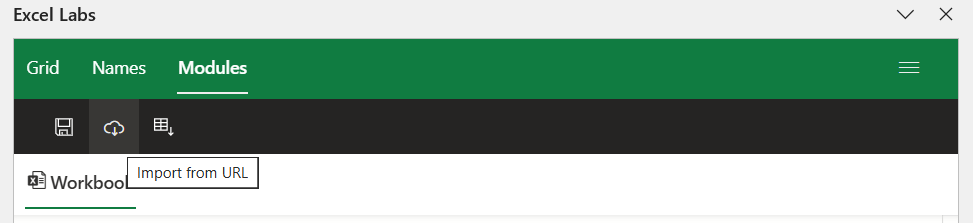
- Click on the “Import from URL” button in the black ribbon (looks like a cloud with a down arrow)
- In the dialogue box that pops up enter the GitHub Gist URL for the
RXL_WbInfomodule (https://gist.github.com/r-silk/9c18090f60ffe442b7d22e6058e83e4a) - Before clicking the “Import” button, check the box for “Add formulas to a new module?” and add the suggested module name to the text box that appears.

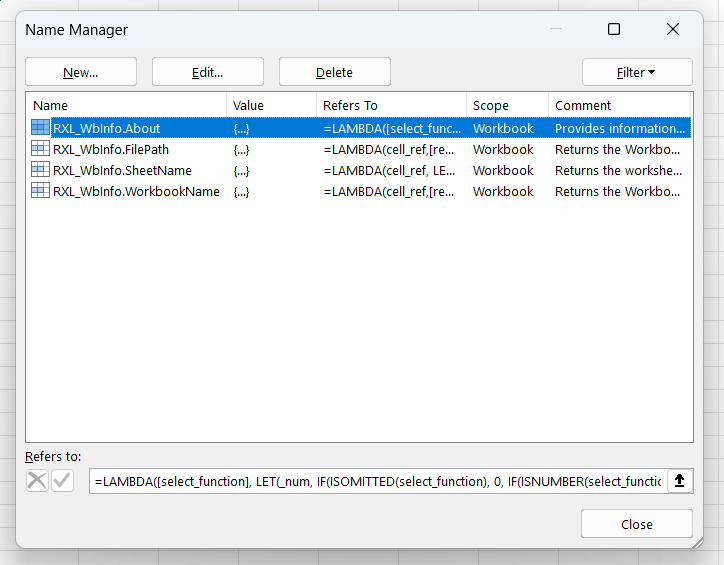
Once the module has been uploaded, the AFE will save a copy of the full module string complete with code comments in your Excel file, which can then be read via the Excel Labs add-in. The AFE will also save copies of each defined function in the Name Manager as defined names with the specified Comments property, and so you can start using the functions by simply typing =RXL_WbInfo in the formula bar.

Leave a comment