

In 2016, Microsoft officially introduced the ability to toggle between light and dark themes in Windows 10. With Office 2016, there was also the ability to switch to a black theme for Office applications, but it wasn’t until Windows 11 that the Office UI Theme had the option of “Use system setting” so that users who had set Windows to use a dark theme, would have a dark/black theme in their Office apps by default. Most recently Excel has also introduced an additional “Dark Mode” toggle button on the View ribbon, which sets the main worksheet to use a black background with white text.
Many users like to use a dark theme / dark mode as it reduces the amount of bright white light from their screen, and it can give a more modern feel to the UI. However, there are also an equal number, if not more, that like the traditional look and feel of the colourful / light mode for Office applications. As a developer, it is nice to be able to accommodate both camps and preferably be able to dynamically tell which theme/mode the user is using and match your own project UI to that user’s preference.
Sadly, when it comes Excel project development, and especially VBA-based development, this can be very difficult to accommodate. Microsoft has not updated the style of the UserForm elements in VBA in a long time, and so any VBA applications tend to look like a throwback to Windows 97. Some more customisation is possible when developing VBA tools for Office through Visual Studio, but this is used for compiled office add-ins rather than included VBA code within a single Excel project file.
Part of the problem is that Microsoft is pushing towards Office Scripts tools and automation where a HTML-based UI is used, but at present there are still plenty of disadvantages for many Excel projects in using Office Scripts over VBA.
If only there was a way to harness the flexibility and more modern feel of a HTML-based user interface for VBA projects rather than relying on the old clunky UserForm tools in the VB Editor?
There is, and it can look great! But that is a subject for another day (future post incoming).
Instead, in this post I plan to go over how it is possible to read which Office theme a user is currently using and then update the styling of a standard VBA UserForm as it is loaded so that you can match your UI to the user’s main Excel application.
Reading the UI Theme
Both the chosen Windows theme and the Office UI theme are stored as persistent values in the registry. Values in the registry are stored as key-value pairs similar to entries in a Dictionary object.
In order to read the value for a registry key you simply need to know the full address for that registry key. Similarly, setting a registry key requires the full address, however, often also requires additional permissions, such as admin permissions, and so can be an issue when sharing with others who may not have the necessary permissions for setting/creating registry keys.
To find the required registry address, you can either employ some expert Google skills and find an article which describes it, or you can take a more DIY approach:
- use a program like Process Monitor (Procmon.exe), which monitors all process calls made by Windows; filter the monitoring output for registry calls and for the Excel application (e.g. excel.exe), and then look to see what is updated as you toggle the UI Theme option in Excel.
For Windows 11 (I haven’t been able to test this on Windows 10 at the moment) and Office 365:
- the Windows theme is stored in the registry with the key
AppsUseLightThemeat the following address:HKEY_CURRENT_USER\Software\Microsoft\Windows\CurrentVersion\Themes\Personalize\AppsUseLightTheme- 0 = No/False -> Dark theme
- 1 = Yes/True -> Light theme
- the Office UI theme setting is stored in the registry with the key
UI Themeat the following full address:HKEY_CURRENT_USER\Software\Microsoft\Office\16.0\Common\UI Theme- 3 = Dark Grey
- 4 = Black
- 5 = White
- 6 = Use system setting (i.e. Windows theme setting)
- 7 = Colourful
In order to match your project UI to the user chosen Office UI theme, read the Office UI theme value first; if it comes back as a value of 6 (“Use system setting”), then read the Windows theme value:
- for Windows Light mode use the Office White theme (5)
- for Windows Dark mode use the Office Black theme (4)
To read a registry entry, first create a Windows Script Host object (WScript) in order to run shell methods (line 5) using CreateObject(). To read a registry value, use the .RegRead() method (line 9). It is important to set the created object back to Nothing after you have finished using it in order to release the object from memory (line 13).
' Define local variables
Dim objShell As Object

' Create the Windows Scipt Host object
Set objShell = CreateObject("WScript.Shell")

On Error Resume Next
    ' Attempt to read the local user Office UI Theme Regisrty entry
    Debug.Print "OfficeUI Theme: " & objShell.RegRead("HKEY_CURRENT_USER\Software\Microsoft\Office\16.0\Common\UI Theme")
    ' Attempt to read the local user Windows Theme Registry entry
    Debug.Print "Windows Theme:  " & objShell.RegRead("HKEY_CURRENT_USER\Software\Microsoft\Windows\CurrentVersion\Themes\Personalize\AppsUseLightTheme")
On Error Goto 0

' Clear object as no longer needed
Set objShell = Nothing
Using the Office UI Theme
By reading the current Office (+/- Windows theme if the Office theme comes back as “Use system setting”), you can adjust the look of your UserForm to give a more cohesive appearance when the user transitions from native Excel UI to your projects UI.
To update the styling of a UserForm before it becomes visible to the user, you would need to check the current Office UI theme as part of the UserForm_Initialize() sub routine. This sub routine is executed when another process first calls the UserForm and completes before the UserForm_Activate() sub routine which is executed at the point at which the UserForm is to be displayed to the user and becomes available for the user to interact with.
Note: As the
Initializesub routine is called when the UserForm is first called/interacted with by another piece of code, it is run when the UserForm is loaded into memory. This means that it will not be called again unless the UserForm is unloaded; if the UserForm is simply hidden it stays loaded in memory and theInitializewill not re-execute, and therefore refresh, your style updating code. TheActivatesub routine is called each time the UserForm is shown regardless of whether the UserForm remains loaded in memory or not.
A relatively efficient method of doing this is, having got the current UI theme, to update a series of module-level variables which define UI element colours to match the theme. These colour variables then are used to update the different UserForm elements as required before the UserForm is displayed either also in the Initialize() sub routine or in the Activate() sub routine.
Below is a simple example of reading the Office UI theme using an approach similar to that shown in the code above and then updating a simplied UserForm to match the Excel theme styling.
' Defining the global variables used to set the form element colours
Dim lnFgPrimary As Long, lnFgSecondary As Long
Dim lnBgPrimary As Long, lnBgSecondary As Long
Dim lnClrAccent1 As Long, lnClrAccent2 As Long, lnClrFooter As Long

Private Sub UserForm_Initialize()

    ' Define local variables
    Dim intTheme As Integer

    ' Attempt to read the current Office UI Theme value and set the appropriate colour variables
    intTheme = GetThemeInfo
    Call SetThemeColours(intTheme)

    ' Update the form elements as required
    Me.BackColor = lnBgPrimary
    Me.ForeColor = lnFgPrimary
    Me.Lbl_Title.ForeColor = lnClrAccent1
    Me.Img_Divider.BackColor = lnClrAccent2
    With Me.Frm_Main
        .BackColor = lnBgSecondary
        .ForeColor = lnFgSecondary
    End With
    Me.Lbl_Main.ForeColor = lnFgSecondary
    Me.Lbl_Footer.BackColor = lnClrFooter

End Sub

Private Function GetThemeInfo() As Integer

    '### Return values:
    '###    1 = Colourful (light) theme
    '###    2 = Black (Dark) theme
    '###    3 = Dark grey theme
    '###    4 = White theme
    '### Defaults to the Colourful/Light theme

    ' Define local variables
    Dim intTh As Integer, intWn As Integer, intReturn As Integer

    ' Read the Office UI Theme and Windows UI Theme using the RXL_OfficeUtilities functions
    intTh = RXL_OfficeUtilities.ReadOfficeUITheme_Value
    ' If the Office theme value is 6 ("Use system setting") then also read the Windows theme
    If intTh = 6 Then _
        intWn = RXL_OfficeUtilities.ReadWindowsUITheme_Value

    ' Decide the correct return value based on the Office UI theme and Windows theme values
    Select Case intTh
        Case 7
            intReturn = 1
        Case 4
            intReturn = 2
        Case 3
            intReturn = 3
        Case 5
            intReturn = 4
        Case 6
            If intWn = 0 Then
                intReturn = 2
            Else
                intReturn = 4
            End If
        Case Else
            intReturn = 1
    End Select

    ' Return function result
    GetThemeInfo = intReturn

End Function

Private Sub SetThemeColours(ByVal pInt As Integer)

    ' Set the module-level colour variables based on the theme value passed as pInt
    Select Case pInt
        Case 1
            lnFgPrimary = 0             'RGB(0,0,0)
            lnFgSecondary = 2697513     'RGB(41,41,41)
            lnBgPrimary = 16777215      'RGB(240,240,240)
            lnBgSecondary = 16777215    'RGB(255,255,255)
            lnClrAccent1 = 16777215     'RGB(255,255,255)
            lnClrAccent2 = 12106326     'RGB(86,186,184)
            lnClrFooter = 15790320      'RGB(240,240,240)
        Case 2
            lnFgPrimary = 16777215      'RGB(255,255,255)
            lnFgSecondary = 16777215    'RGB(255,255,255)
            lnBgPrimary = 0             'RGB(0,0,0)
            lnBgSecondary = 2697513     'RGB(41,41,41)
            lnClrAccent1 = 14145696     'RGB(160,216,215)
            lnClrAccent2 = 12106326     'RGB(86,186,184)
            lnClrFooter = 2697513       'RGB(41,41,41)
        Case 3
            lnFgPrimary = 0             'RGB(0,0,0)
            lnFgSecondary = 0           'RGB(0,0,0)
            lnBgPrimary = 5395026       'RGB(82,82,82)
            lnBgSecondary = 12434877    'RGB(189,189,189)
            lnClrAccent1 = 16777215     'RGB(255,255,255)
            lnClrAccent2 = 12106326     'RGB(86,186,184)
            lnClrFooter = 12434877      'RGB(189,189,189)
        Case 4
            lnFgPrimary = 0             'RGB(0,0,0)
            lnFgSecondary = 2697513     'RGB(41,41,41)
            lnBgPrimary = 16777215      'RGB(240,240,240)
            lnBgSecondary = 16777215    'RGB(255,255,255)
            lnClrAccent1 = 8620825      'RGB(25,139,131)
            lnClrAccent2 = 12106326     'RGB(86,186,184)
            lnClrFooter = 15790320      'RGB(240,240,240)
    End Select

End Sub
The UserForm_Initialize() sub routine starts by calling the GetThemeInfo() function to determine the current user Office UI theme (line 12). The GetThemeInfo() function returns a numeric value for the current theme, defaulting to 1 for the colourful/light theme as this tends to be most widely used Office UI theme. The returned theme value is then used in the SetThemeColours() sub routine call (line 13).
The SetThemeColours() sub routine uses a Select statement to set the appropriate colour values for the module-level variables (lines 75-108) based on the passed theme value (pInt). When setting a colour, most UserForm elements/controls require a Long data type value (a whole number) rather than a colour code such as RGB. As such it is easier to store the chosen colour values in the code as the calculated Long value with the RGB colour code shown next to the Long value as a comment for reference.
Note: In order to calculate the Long value from an RGB colour code you can use the
RGB()function. Simply type?RGB([r],[g],[b])into the VB Editor Immediate window (replacing[r],[g], and[b]with the appropriate red, green, and blue values) and press enter.
Having determined the current theme choice and set the colour variables, the UserForm_Initialize() sub routine is then used to update the required UserForm elements/controls using the updated module-level colour variables (lines 16-25) before the UserForm_ Activate() sub routine is executed and the UserForm is displayed to the user.
Below are screen shots of the simple UserForm in the above VBA code across the four different Office UI themes.
Screen shot with Colourful / Light mode Office theme
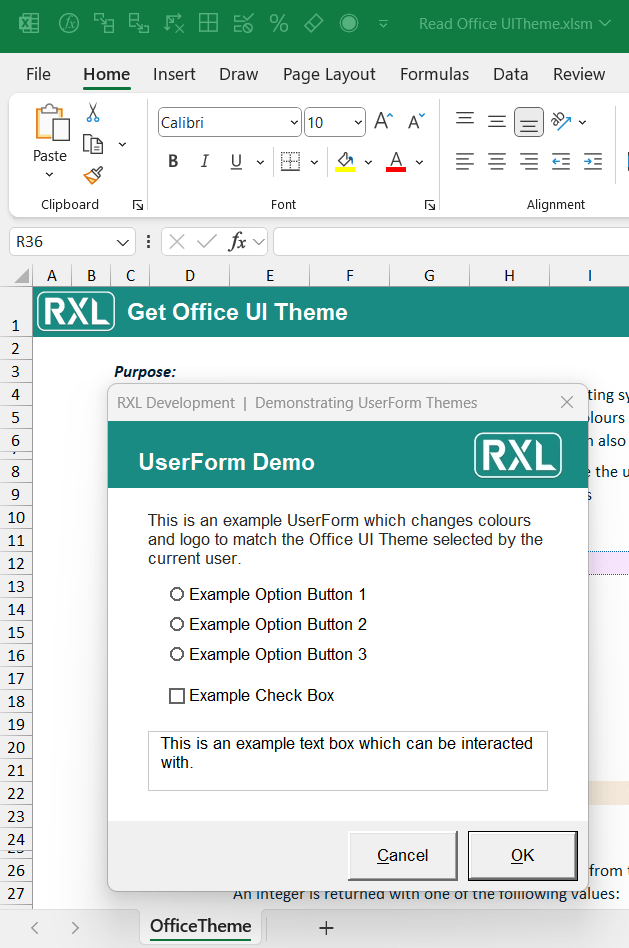
Screen shot with White Office theme

Screen shot with Dark grey Office theme

Screen shot with Black / Dark mode Office theme

If you wish to have a play around with this idea more yourself and investigate the code, I have uploaded an demo file. The file contains the full RXL_OfficeUtilities VBA module and a simple example UserForm which updates to the Office UI theme as shown in the screen shots above. The file (Read Office UI Theme.xlsm) can be found in the RXL_VBATools GitHub repository at the following address:
https://github.com/r-silk/RXL_VBATools/tree/main/OfficeUITheme
The RXL_OfficeUtilities VBA module contains different functions for reading the UI theme, as well as functions to read the full Excel version and build number.
ReadOfficeUITheme_Value()- Reads the Office UI theme and returns a numeric value to indicate which theme is currently in use
ReadWindowsUITheme_Value()- Reads the Windows UI theme and returns a numeric value to indicate which theme is currently in use
ReadOfficeUITheme_String( )- Reads the Office UI theme and Windows UI theme and returns a string with the name of the theme currently in use
ReadExcelBuildNumber_String( )- Reads the full Excel version and build number for the current Excel instance and returns a string in the format:
[major].[minor].[revision].[build]
- Reads the full Excel version and build number for the current Excel instance and returns a string in the format:
ReadExcelBuildNumber_Array( )- Reads the full Excel version and build number for the current Excel instance, splits it into parts, and returns an array in the format:
(1)= major version number(2)= minor version number(3)= revision number(4)= build number
- Reads the full Excel version and build number for the current Excel instance, splits it into parts, and returns an array in the format:

If you would like to have a closer look at the RXL_OfficeUtilities code and have a play around with a demo, there is an Excel file (Read Office UI Theme.xlsm) which can be downloaded from the RXL_VBATools GitHub repository within the OfficeUITheme sub-folder:
https://github.com/r-silk/RXL_VBATools
To include the RXL_OfficeUtilities module in your own Excel project, you simply need to import the module into your VBA project and then make the requried function call as discussed above.
The module can be imported by using one of the two methods below:
- Copy from demo file
- If you have downloaded the Read Office UI Theme.xlsm file (https://github.com/r-silk/RXL_VBATools), you can copy the module and import it directly.
- Open the Read Office UI Theme.xlsm file, as well as the Excel file you wish to import it into, and open the VB Editor.
- Find the
RXL_OfficeUtilitiesmodule in the VB Editor Project Explorer, right-click on the module and select “Export File…“ - Save the RXL_OfficeUtilities.bas file to your Desktop.
- Select the Excel file you wish to import the module to in the VB Editor Project Explorer, right-click, and select “Import File…“
- You can then select the RXL_OfficeUtilities.bas file from your Desktop and click “Open” – this will import a copy of the VBA module into your Excel project file.
- Download from repository
- Alternatively, go to the GitHub repository and the OfficeUITheme sub-folder, where the demo file is saved (https://github.com/r-silk/RXL_VBATools), and directly download the RXL_OfficeUtilities.bas file.
- Open the Excel file you wish to import the module into, go to to the VB Editor and find the chosen Excel file in the VB Editor Project Explorer.
- Right-click on the chosen Excel file and select “Import File…“; choose the RXL_OfficeUtilities.bas file where you downloaded it to and click “Open” – this will import a copy of the VBA module into your Excel project file.

Leave a comment