

What is a Cross Join?
When working with databases using a language such as SQL, there are times when it is necessary or useful to combine data from different data tables/sources. There are two main ways in which data tables are combined: a JOIN operation, or a UNION operation.
- A UNION will add the rows from one data table to another (concatenation), and where columns are present in both tables these will be combined, otherwise the non-shared columns are included with Null values.

- A JOIN will combine rows from two data tables based on the values in a related column, such as a unique ID column/field. Where a row does not have data present for all columns across both data tables, any missing values are replaced with Null values.
- INNER JOIN — only returns rows which are present in both data tables based on the related column(s)/field(s)
- LEFT JOIN — returns all rows from the first (Left) data table and any from the second data table that match to the rows in the first data tale based on the related column(s)/field(s)
- RIGHT JOIN — returns all rows from the second (Right) data table and any from the first data table that match to the rows in the second data tale based on the related column(s)/field(s)
- FULL JOIN — returns all rows from both data tables combining those that match based on the related column(s)/field(s) and adding Null values to the unmatched rows

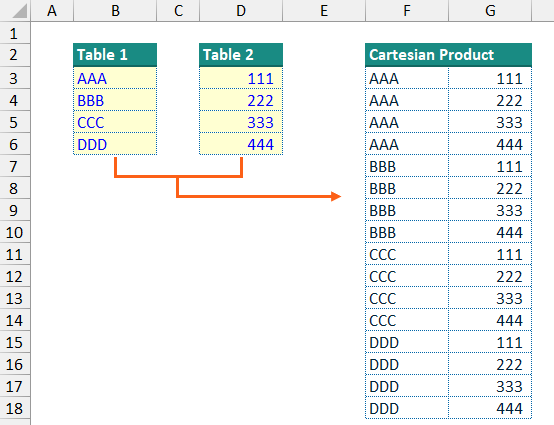
A CROSS JOIN, also referred to as a Cartesian product Join or a Cartesian Join, combines each row from one data table with each row from a second table. This results in a new data table with every possible combination of rows from the input data tables, e.g. if there are five rows in the first input table and 6 rows in the second data table, a CROSS JOIN will produce a new data table with (5 * 6 =) 30 rows.
The CrossJoin() function
I have had a few occasions when it was necessary to be able to model and calculate all combinations of two (or more) input lists within an Excel model.
Creating a single table in Excel containing all combinations of two short lists is a very manual but not too difficult process (see the screenshot of a simple Cartesian Product above). However, for longer lists of inputs or where there are more than two input lists, this can start to become a long and inefficient process. If at any point the user adds extra inputs to any of the lists or makes substantial changes to the input lists, this can lead to a very frustrating and inefficient time updating your calculation table of combinations.
To try to make this process more dynamic and efficient you can use lookup formulae, with or without helper columns, but this can still end up being time consuming if the size of the input lists being combined is changed. Similarly, you could use Power Query to combine the input lists and create the Cartesian product output table and once set up this will be a much more efficient method when any updates are processed to the input lists. However, for a Power Query-based process, updates to the output on the Excel worksheet need to be refreshed and are not triggered simply by the user updating an input cell value.
This inspired me to create a custom LAMBDA() function which would easily allow for the creation of the equivalent of a Cross Join directly on the worksheet which would be entirely dynamic and triggered by a change in an input cell value in the standard manner for a worksheet formula.
Initially the function would deal with a two simple, one-dimensional (1D) vertical lists (i.e. two single columns of variable row length), where each row of the second input array would be added to each row of the first input array. Then enthusiasm lead to the inevitable “feature creep”. As such, the final version of the function allows for:
- input arrays (via the
list_oneandlist_twoinput parameters) to be of any size and dimensions;- The input arrays can a 1D (i.e. a single row or single column) or 2D (multiple rows and columns), and the function will attempt to detect whether the array has a vertical orientation (more rows than columns) or horizontal orientation (more columns than rows).
- There is additional functionality to allow the user to convert either of the input arrays to a single list / 1D array before the Join, and to do this on a row-first or column-first basis, via the
convert_list_one,convert_list_two,list_one_by_column, andlist_two_by_columninput parameters.
- blank/empty input array cells can be replaced with a given value before the Join, via the
replace_blanksinput parameter; - blank/empty rows or rows containing Excel error values in either input lists can be filtered out before the Join, via the
filter_blanksandfilter_errorsinput parameters; - the output array can be filtered to keep only distinct/unique rows, i.e. removing any duplicate combinations of the two input arrays after the Join, via the
distinct_rowsinput parameter; and - the output array can be forced to either a vertical output (extending down the worksheet) or a horizontal output (extending across the worksheet) via the
vertical_outputinput parameter.
Function code
= LAMBDA(
  // Parameter definitions
  list_one,
  list_two,
  [convert_list_one],
  [list_one_by_column],
  [convert_list_two],
  [list_two_by_column],
  [replace_blanks],
  [filter_blanks],
  [filter_errors],
  [distinct_rows],
  [vertical_output],
  // Main function body/calculations
  LET(
    // Dealing with optional parameters
    _cvt1, IF( ISOMITTED(convert_list_one), FALSE, convert_list_one),
    _byCol1, IF( ISOMITTED(list_one_by_column), TRUE, list_one_by_column),
    _cvt2, IF( ISOMITTED(convert_list_two), FALSE, convert_list_two),
    _byCol2, IF( ISOMITTED(list_two_by_column), TRUE, list_two_by_column),
    _rep, IF( ISOMITTED(replace_blanks), "", replace_blanks),
    _blnk, IF( ISOMITTED(filter_blanks), FALSE, filter_blanks),
    _errs, IF( ISOMITTED(filter_errors), FALSE, filter_errors),
    _dst, IF( ISOMITTED(distinct_rows), FALSE, distinct_rows),
    _vrt, IF( ISOMITTED(vertical_output), TRUE, vertical_output),
    // Input checks for the optional parameters and required parameters, returning the _inpChk value as 1-to-3
    _chk, REDUCE(0,
      VSTACK(_cvt1, _byCol1, _cvt2, _byCol2, _blnk, _errs, _dst, _vrt),
      LAMBDA(_acc,_val, _acc + AND( NOT(ISLOGICAL(_val)), NOT(ISNUMBER(_val))))
    ),
    _inpChk, IF(
      OR( NOT(ISREF(list_one)), NOT(ISREF(list_two))), 2,
      IF(_chk > 0, 3,
      1)
    ),
    // Determine if the input array lists are to be considered vertically or horizontally oriented (assumes vertical if square in dimensions)
    //  -- assumes vertical orientation by default, e.g. if there are square dimensions
    _hz1, (COLUMNS(list_one) > ROWS(list_one)),
    _hz2, (COLUMNS(list_two) > ROWS(list_two)),
    // Replace blank values with the replacement string as appropriate
    _list1, IF( ISBLANK(list_one), _rep, list_one),
    _list2, IF( ISBLANK(list_two), _rep, list_two),
    // Re-orientate the input lists if not vertical, and convert to a single vertical 1D array if chosen by the user
    _tbl1, LET(
      _tT, IF(_hz1, TRANSPOSE(_list1), _list1),
      IF(_cvt1,
        TOCOL(_tT, 0, IF(_hz1, NOT(_byCol1), _byCol1)),
        _tT
      )
    ),
    _tbl2, LET(
      _tT, IF(_hz2, TRANSPOSE(_list2), _list2),
      IF(_cvt2,
        TOCOL(_tT, 0, IF(_hz2, NOT(_byCol2), _byCol2)),
        _tT
      )
    ),
    // For the vertical and converted lists, create a filter inclusion list and filter as determined by the user inputs
    _inc1, BYROW(_tbl1, LAMBDA(_row, IF(_blnk, SUM(--(IFNA(_row, "#") <> "")), 1) * IF(_errs, NOT(ISERROR(SUM(_row))), 1))),
    _inc2, BYROW(_tbl2, LAMBDA(_row, IF(_blnk, SUM(--(IFNA(_row, "#") <> "")), 1) * IF(_errs, NOT(ISERROR(SUM(_row))), 1))),
    _fltr1, FILTER(_tbl1, _inc1),
    _fltr2, FILTER(_tbl2, _inc2),
    // Calculate the number of rows and columns for each of the filtered lists
    _rr1, ROWS(_fltr1),
    _rr2, ROWS(_fltr2),
    _cc1, COLUMNS(_fltr1),
    _cc2, COLUMNS(_fltr2),
    // Calculate the output array
    _rtn, LET(
      // Create the repeated lists and stack horizontally
      _cT, HSTACK(
        MAKEARRAY(_rr1 * _rr2, _cc1, LAMBDA(_row,_col, INDEX(_fltr1, ROUNDUP(_row / _rr2, 0), _col))),
        MAKEARRAY(_rr1 * _rr2, _cc2, LAMBDA(_row,_col, INDEX(_fltr2, MOD(_row - 1, _rr2) + 1, _col)))
      ),
      // Limit to unique rows only as required by user inputs
      _dT, IF(_dst,
        UNIQUE(_cT),
        _cT
      ),
      // Transpose the vertical output array to horiztonal (left-to-right) as required by user inputs
      _rT, IF(NOT(_vrt),
        TRANSPOSE(_dT),
        _dT
      ), _rT
    ),
    // Check if an input check has flagged
    //  -- if so, output the appropriate error code
    //  -- if not output the calculated output array
    CHOOSE(_inpChk, _rtn, INDIRECT(""), #VALUE!)
  )
)
The function input parameters are declared in lines 3-13 with the optional parameters defined by the use of square brackets ("[ ]"). This is followed by dealing with the optional parameters setting default values where input values have been omitted (lines 17-25).
Input checks are performed for both the two main input parameters (list_one and list_two) and the optional parameters other than the replace_blanks input parameter. As the other optional parameters all have the same required input values (either a logical True/False value, or a single number 0/1), to improve formula efficiency a LAMBDA() function is used to iterate through the optional input parameter values and check their validity via the _chk variable (lines 27-30). This is followed by testing the two required input parameter values via the _inpChk variable (lines 31-35). Preference is given to the required input parameters (list_one, list_two) so that if either has an invalid input value this will be output ahead of any optional input parameter invalid input values.
The main calculations start by determining the orientation of the two input lists (lines 38-39). For each input array:
- if there are more rows than columns the array is considered vertically aligned;
- if there are more columns than rows the array is considered horizontally aligned; and
- where there are an equal number of rows and columns the default is to assume that the array is vertically aligned.
Before the main join calculation is performed, horizontal input arrays are transposed to vertical, and then these vertically aligned input arrays are converted to a single column where this is chosen by the user via the convert_list_one and convert_list_two input parameters (lines 44-57). By default, when converting to a single column array a vertically aligned input array will be read by column and horizontally aligned input arrays will be read by row.
Having converted and aligned the two input arrays (stored in variables _tbl1 and _tbl2), filtering is applied as required as per the filter_blanks and filter_errors input parameters. Initially a filter inclusion array is created using a BYROW() function (lines 59-60), marking rows where all values are blank or where there are any Excel error values present. The filter inclusion list is then used to filter the converted input arrays (lines 61-62).
Note: If the
replace_blanksparameter has been used to replace any blank values in thelist_oneandlist_twoinput arrays (lines 41-42), then thefilter_blanksfunctionality will have not effect as the replacement occurs before the filtering steps.
The Cartesian product of the two aligned, converted, and filtered input arrays is created using MAKEARRAY() functions and combined with a HSTACK() function (lines 71-74). The combined and calculated Cartesian product (_cT), is filtered to distinct combinations only using a UNIQUE() function as required (lines 76-79) and transposed to a horizontal orientation output as required (lines 81-84). By default, a vertical output is preferred, and all calculated output rows are output.
Finally, the function checks if any of the input checks have flagged (_inpChk), and if so, returns an appropriate Excel error value, otherwise the calculated and updated output array (_rtn) is returned (line 89).

If you want to use the CrossJoin() function in your own projects, please consider including it via the full RXL_Data module. If you would prefer to include just the single CrossJoin() function, please use one of the options below:
- Using Excel Labs Advanced Formula Environment (AFE) download the
RXL_CrossJoinfunction using the Gist URL https://gist.github.com/r-silk/1203fd946f4096f3744083040668dbae - Alternatively, go to the GitHub repository https://github.com/r-silk/RXL_Lambdas and download the file
RXL_CrossJoin.xlsx- this file contains a copy of the function in the Defined Names which can be copied into your own file
- there is also a “minimised” version of the function which can be copied and pasted directly into the Name Manager when defining a new name of your own — please use the suggested function name of
RXL_CrossJoin - alternatively, you can use the VBA code and instructions on the “VBA” worksheet to copy the function across to your own project using VBA
- the file contains the documentation for the function as well as some details on development and testing/example usage

Leave a comment