

In February this year I was able to attend the Global Excel Summit 2025 (GES 2025). As was the case at the 2024 Summit, Bob Umlas presented an excellent session show-casing some great Excel tips and tricks. One of things that Bob demonstrated was the idea of finding a value or item within a two-dimensional (2D) array of cells and then returning the relative row and column of that value; in effect the opposite of the INDEX() function or a Lookup function.
- e.g. instead of passing a row and column value and returning the value of the cell at that intersection, you can provide the value to find and then return it’s (relative) position.
This seemed like a really fun idea to play around with, so I decided to make my own reverse-INDEX style function: FindItem().
The idea was to build a custom Lambda function where the user could provide a search condition and then return the matching result(s) from an input range. I wanted the search condition to allow for more than just a simple “equals-to” type of match, and I wanted to be able to output either the matching values, the relative position, or the absolute position of the matching cells/values.
As I find is often the case, once I started building my custom function, “feature-creep” came along and I found myself building in all sorts of flexibility and functionality to FindItem(), which I have described below. The full functionality version of the function uses the newer native Excel RegEx functions, but as these may not be available to all users there is also an alternative version of the function which does not use RegEx.
Function Development
The basic principle of the FindItem() function is:
- create an output array with the same dimensions as the input range, then;
- filter the output array based on the search condition against the original input range; and finally
- convert the filtered output array to a single column list of matches.
This approach means that all output conditions can be accommodated at the same point and then filtering can be used to leave only the matching output values.
This does mean there is some loss of efficiency in calculating the output values for all input values, rather than filtering the input values then calculating outputs for only the matching input values. However, the act of filtering the input values based on the search conditions will leave you with only an array of filtered values rather than referenced cells, making calculating the row- and column-type output values more difficult. Instead, these dimensional/positional output values can easily be calculated based on the raw input references at the initial stage of the function calculations.
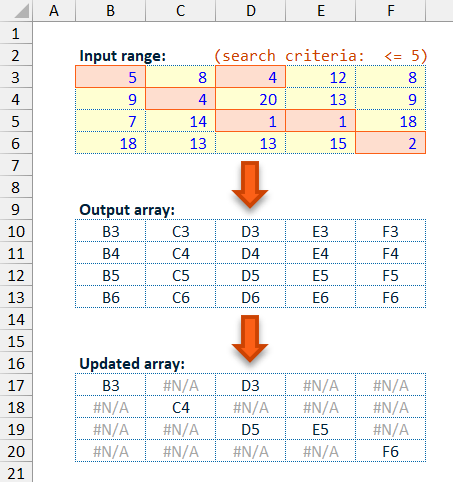
Having created the array of output values, this is updated to preserve only values where the corresponding input range values match the chosen search condition. Where there is a match the calculated output value is preserved, where there is no match the output array is changed to a #N/A value.
By using this approach of converting non-matching data points in the output array to #N/A values, the filtering and converting to a single column can be achieved with a single TOCOL() function, as the TOCOL() function ignore parameter allows for the exclusion of error values (inc. #N/A) when converting the provided array into a single return column.
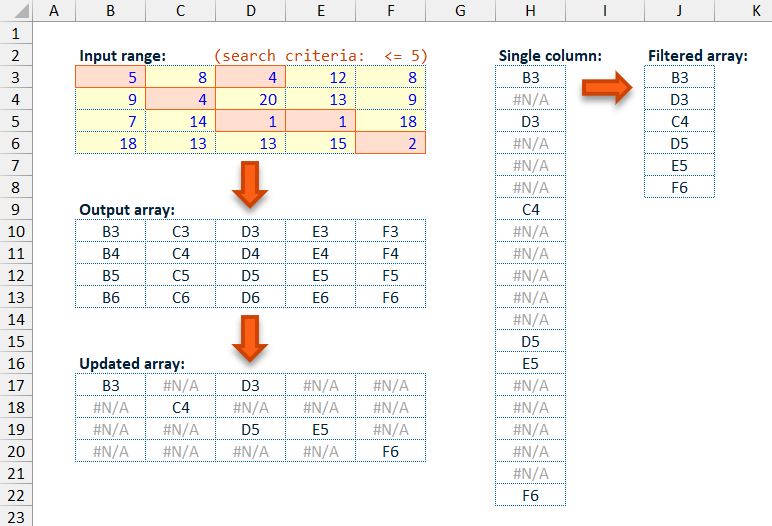
Note: This approach means that the
FindItem()function can not be used to search/match based on error values as these would be excluded by theTOCOL()function call.
Function Matching Options
I started the FindItem() function development intending to provide simple numeric matching. At its simplest, using the default match_type option, the function will try to match the provided find_item value against each of the values in the input range using “equal-to” logic. I then extended this to also allow “not-equal-to”, “greater-than”, “less -than”, “greater-than-or-equal-to”, and “less-than-or-equal-to” matching logic.
When testing these different matching options, I realised that the default “equal-to” logic could be applied to text/string matching but would only positively return text-based input values which exactly match the whole of the find_item value.
To make the function more useful for text-based searching I added in a new match_type option which could be used for partial text matching, or sub-string searching, on a non-case sensitive basis. I decided to use non-case sensitive matching logic as I felt that this was the more likely option to be useful.
- e.g. positively matching the
find_itemvalue of “at” in both input values of “battery” and “CATCH“, but not in “car“.
Following the roll-out of the new Excel RegEx functions I decided to also add RegEx searching as a match_type option which would allow for more advanced partial text matching and also give an easy case sensitive search option.

Finally, to make the final function a little more user friendly I made the match_type input parameter capable of accepting either a numeric value or a short string, so that the user can choose the wanted matching logic without having to remember what each input number relates to.
When setting the match_type input parameter you can either use one of the numbers below or enter one of the short string inputs shown below.
| Input number | Input text | Match type |
|---|---|---|
0 | "=" | (default) equal-to |
1 | "<>" | not-equal-to |
2 | ">" | greater-than |
3 | "<" | less-than |
4 | ">=" | greater-than-or-equal-to |
5 | "<=" | less-than-or-equal-to |
6 | "find" | sub-string/partial text match |
7 | "regex" | matches the RegEx expression string |
Function Output Options
In order to make the function as useful as possible, I wanted to include multiple output options that the user can choose from via the output_type input parameter.
The default output option is to return a list of matching values. This is of most use for text-based matching and for the non-default numeric matching options like “greater-than-or-equal-to” or “not-equal-to”. It can be used for the default “equal-to” matching option but will simply return a list of each matched copy of that value.
As was the main inspiration for the FindItem() function, you can output the position of each match within the input data range. At its simplest the function can output the row-column position of each matching value, either:
- relative to the input data range
- e.g. a matching value in the first cell of the input data range would be output as row 1, column 1
- relative to the worksheet that the input data range is on
- e.g. a matching value in the first cell of the input data range, where the input range covers cells B2:E5, would be output as row 2, column 2
By default, when using the row-column position output options, the output values are provided in a comma-separated format: [row],[column].
To make the function more useful when using the row-column position output options, the user can set the split_output input parameter to TRUE, and then row-column values for matching values will be output as two separate columns, with the [row] values in the first output column and the [column] values in the second output column. This functionality (splitting the relative positional output) is of most use when matching values within a 2D array of values which have row and column headers, as the FindItem() function outputs can then be used to get the row and column headers for the values which match the search criteria.

As well as providing the row-column position for matching values, the FindItem() function can output the cell address for each matching value within the input data range. This can either be a fully anchored cell address (e.g. $A$1), or unanchored (e.g. A1) but will not include a worksheet name reference. The cell address output option does not allow for R1C1 format cell addresses as these can be constructed from the absolute relative-positional output option if needed, using the row and column position relative to the input data worksheet.
Finally, the FindItem() function can provide a simple count of the number of matches found within the input data range for the provided search criteria.
| Input number | Output type |
|---|---|
0 | (default) list of matched values |
1 | relative position [row,col] of each match within the source array |
2 | absolute position [row,col] of each match within the source worksheet |
3 | cell address of each match (A1) |
4 | absolute cell address of each match ($A$1) |
5 | count of matches found |
For added presentational option the FindItem() function offers the ability to automatically add header text to the function output via the add_header input parameter. The if_not_found input parameter allows the user to provide a value which is used where the function does not match any of the input range values to the search criteria. By default, if no value is provided for if_not_found then the function will return a #N/A error value, except for when the output_type is set to “count of matches” in which case a value of 0 is returned where there are no matches found in the input range.
Function Code
= LAMBDA(
  // Parameter declarations
  range,
  find_item,
  [match_type],
  [output_type],
  [if_not_found],
  [add_header],
  [split_output],
  // Main procedure
  LET(
    _rng, range,
    _itm, find_item,
    // Deal with the optional input parameters and set default values for any omitted parameters
    _mInp, IF( OR( ISOMITTED(match_type), ISBLANK(match_type)), 0, INT(match_type)),
    _typ, IF( ISNUMBER(_mInp), _mInp + 1, IFNA( MATCH( LOWER(match_type), {"=","<>",">","<",">=","<=","find","regex"}, 0), -1)),
    _optn, IF( OR( ISOMITTED(output_type), ISBLANK(output_type)), 0, INT(output_type)),
    _rep, IF( OR( ISOMITTED(if_not_found), ISBLANK(if_not_found)), NA(), if_not_found),
    _add, IF( OR( ISOMITTED(add_header), ISBLANK(add_header)), FALSE, add_header),
    _splt, IF( OR( ISOMITTED(split_output), ISBLANK(split_output)), FALSE, split_output),
    // Check inputs
    //  --> invalid cell reference in the range parameter will give a #REF! error
    //  --> invalid inputs provided for the match_type or output_type parameters will
    //      give a #VALUE! Error
    _inpChk, IF(
      NOT(ISREF(range)), 2,
        IF(
          OR(
            _typ < 1, _typ > 8,
            NOT(ISNUMBER(_optn)), _optn < 0, _optn > 5
          ),
        3, 1)
    ),
    // Creates an array of the chosen output type/format to the same dimensions as
    // the source array
    //  --> the CHOOSE() function determines which output type to use
    _tbl, CHOOSE(_optn + 1,
      _rng,
      (ROW(_rng) - ROW( TAKE(_rng, 1)) + 1) & "," & (COLUMN(_rng) - COLUMN( TAKE(_rng, , 1)) + 1),
      ROW(_rng) & "," & COLUMN(_rng),
      ADDRESS( ROW(_rng), COLUMN(_rng), 4, 1),
      ADDRESS( ROW(_rng), COLUMN(_rng), 1, 1),
      _rng
    ),
    // Calculate the output array
    //  --> the CHOOSE() function determines which match type to use
    //  --> the IF() functions go through the source array and preserves any matches
    //      (from the created outputs array, _tbl) and sets non-matches to #N/A
    //  --> the TOCOL() function converts the updated array to a single vertical 1D array
    //      and filters out #N/A values to leave only any matches
    _mtch, TOCOL(
      CHOOSE(_typ,
        IF(_rng = _itm, _tbl, NA()),
        IF(_rng <> _itm, _tbl, NA()),
        IF(_rng > _itm, _tbl, NA()),
        IF(_rng < _itm, _tbl, NA()),
        IF(_rng >= _itm, _tbl, NA()),
        IF(_rng <= _itm, _tbl, NA()),
        IF( ISNUMBER( FIND( LOWER(_itm), LOWER(_rng))), _tbl, NA()),
        IF( REGEXTEST(_rng, _itm), _tbl, NA())
      ),
    2),
    // Determine whether the return result should be the filtered/matched output array
    // or the count of the filtered/matched output array
    _calc, IF(_optn <> 5, _mtch, ROWS(_mtch)),
    // Check if the calculated result returns an error suggesting not match
    // -- if so return the correct "not found" value
    _arr, IF( ISERROR(_calc), IF(_optn = 5, 0, _rep), _calc),
    // Create the required header based on the chosen output type, and stack this on
    // top of the calculated results array
    _hdr, CHOOSE(_optn + 1,
      "Matches",
      "Row,Column",
      "Row,Column",
      "Cell Address",
      "Cell Address",
      "Count of Matches"
    ),
    _inc, VSTACK(_hdr, _arr),
    // If the relative or absolute cell position output type is chosen and the split_output
    // parameter is TRUE then the header and results are split into two columns
    _rslt, IF( AND(_splt, _optn > 0, _optn < 3),
      DROP( REDUCE("", _inc, LAMBDA(_acc,_val, VSTACK(_acc, TEXTSPLIT(_val, ",", , TRUE)))), 1),
      _inc
    ),
    // If the add_header parameter is FALSE then remove the header row
    _out, DROP(_rslt, IF(_add, 0, 1)),
    // If there are any #N/A values in the output array these replaced with the
    // if_not_found value
    _rtn, IF( ISNA(_out), _rep, _out),
    // If the input checks (_inpChk) have flagged then return the required Excel error code,
    // otherwise return the calculated result (_rtn)
    CHOOSE(_inpChk, _rtn, INDIRECT(""), #VALUE!)
  )
)
The function input parameters are declared in lines 3-9 with the optional parameters defined by the use of square brackets ("[ ]"). This is followed by dealing with the optional parameters setting default values where input values have been omitted (lines 15-22) and then input checks for three of the main input parameters: range, match_type, and output_type (lines 25-33).
As described above, the function first calculates an output array which matches the input data range values in dimensions (lines 37-43), using a CHOOSE() function to determine that chosen output option based on the output_type input parameter.
This is then followed by a combination of a TOCOL() and CHOOSE() functions (lines 51-62):
- the
CHOOSE()function determines which matching logic to use, with the calculated output values (_tbl) preserved where the corresponding input value matches the search criteria and non-matching values updated to#N/A; - the
TOCOL()function then coverts the updated calculated output array to a single column of output values and filters out any non-matching#N/Avalues.
The next step (line 65) determines whether to output the filtered and converted output array (_mtch) or to provide a count of the number of matches based on the chosen output_type. The filtered and converted output (_calc) is then checked to see if an error is present (suggesting that no matches have been found), in which case either the replacement value (as per if_not_found) is used or a value of 0 is returned if the “count of matches” output option is chosen (line 68).
Appropriate header text is chosen based on the output_type and added to the calculated output (lines 71-79). The header text is added regardless of whether the add_header is True so that it can be correctly split into columns if this option is chosen by the user. If the user has chosen to split the output into two columns, as per the split_output input parameter, then this performed in lines 82-85 but only where a row-column positional output option has been chosen. The TEXTSPLIT() function is used to split the [row],[column] positional output using the "," (comma) character.
If the full output array (_inc) is provided to the TEXTSPLIT() function then only a single column is returned containing the value before the comma (","). By using a REDUCE() function with a VSTACK() to isolate each row of the output array, the TEXTSPLIT() can act on an individual output row, and then stack these split rows back into a single output array with two columns as the output of the REDUCE() function.
After the output array has been split as appropriate, the function considers whether to remove the top header row, based on the add_header input, using a DROP() function (line 87).
Finally, the function checks if any of the input checks have flagged (_inpChk), and if so returns an appropriate error value, otherwise the calculated and updated output array (_rtn) is returned (line 93).

If you want to use the FindItem() function in your own projects, please consider including it via the full RXL_Data module. If you would prefer to include just the single FindItem() function, please use one of the options below:
- Using Excel Labs Advanced Formula Environment (AFE) download the
RXL_FindItemfunction using the Gist URL https://gist.github.com/r-silk/ad8fa1536830e6fbfbf91953fa4efc3a - Alternatively, go to the GitHub repository https://github.com/r-silk/RXL_Lambdas and download the file
RXL_FindItem.xlsx- this file contains a copy of the function in the Defined Names which can be copied into your own file
- there is also a “minimised” version of the function which can be copied and pasted directly into the Name Manager when defining a new name of your own — please use the suggested function name of
RXL_FindItem - alternatively, you can use the VBA code and instructions on the “VBA” worksheet to copy the function across to your own project using VBA
- the file contains the documentation for the function as well as some details on development and testing/example usage

Leave a comment