
As someone who remembers the challenges of getting just a part of a longer string using the older Excel functions, I was very excited when the new TEXTAFTER() and TEXTBEFORE() functions were introduced to Excel.
The Old Way
Previously in Excel, to get all of the text before or after a particular character (or delimiter) you needed to use a combination of the FIND() and LEN() functions within a RIGHT() or LEFT() function. This approach involves finding the numeric position of the chosen delimiter using the FIND() function and then returning the correct number of characters from the chosen side of the delimiter, via the LEN() function, within a RIGHT() function for text after a delimiter, or LEFT() function for text before the delimiter.
// For text before the delimiter
= LEFT( [text] , FIND( [delimiter], [text] ) – LEN( [delimiter] ))
// For text after the delimiter
= RIGHT( [text] , LEN( [text] ) – FIND( [delimiter], [text] ))
To get the text between two different delimiters using the above approaches can get quite complicated and end up with a complex, nested formula which is difficult to read. Equally, using this approach, finding a specific delimiter where there are multiple such delimiters in the source text string is possible but can get very complicated, e.g. finding the last “.” character in a string using FIND() is challenging.
Fortunately, there is the MID() function for returning the text from a source string starting at a specified character and going for a stated number of characters.
// For text between two different delimiters
= MID( [text] , FIND( [left_delim] , [text] ) + LEN( [left_delim] ), FIND( [right_delim] , [text] ) - (FIND( [left_delim] , [text] ) + LEN( [left_delim] )))
For some more real-life examples, we can look at using the CELL() function to dynamically extract the worksheet name, file name, and file path.

Note: the
CELL()function will provide the referenced Workbook filename in the format C:\File\Path\[FileName.xlsx]SheetName
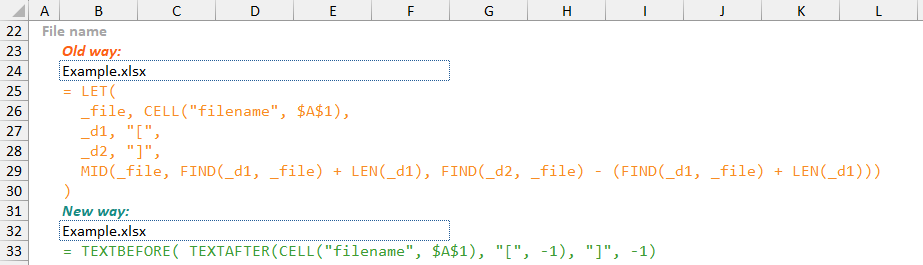
To get the worksheet name from the CELL() function output, requires getting the text after the last “]” character which we can achieve using the RIGHT() and FIND() functions. To get the Workbook file name we need to the text between the “[“ and “]” characters, which can be achieved using the MID() function. Even for the relatively simple worksheet name this approach requires three calls to the CELL() function.
This can be improved using the LET() function as shown below so that only a single CELL() function call is needed but us still more complicated and less easy to understand than using the newer TEXTAFTER() and TEXTBEFORE() functions.

Additionally, the use of the LET() function to define both the source text string (_file) and the delimiters (_d1, _d2), shows how a more generic formula can be created to find the text between delimiters. However, the FIND() function means that only the first instance of each delimiter is used which could lead to unexpected behaviour.
Note: Valid Excel file names cannot contain the “[” or “]” characters but a valid file path could, which might lead to problems with the formula above as currently written.
The New Way
The major advantages of the new TEXTBEFORE() and TEXTAFTER() functions are:
- the ability to get the full text from either side of a delimiter character(s) with a single function call;
- the ability to specify a particular instance of a delimiter character(s) rather than stopping at the first instance that is found; and
- the ability to search from either the start of the string or the end of the string.
By using the same CELL() based examples above, the improvement in formula simplicity and readability using TEXTBEFORE() and TEXTAFTER() is clear.

Note: As previously stated, Excel file names and worksheet names cannot use the “[” and “]” characters, but a valid file path can contain these characters. By looking for the last instances of the “[” and “]” characters (or first instances when reading the string in reverse), these will have to be the characters around the file name regardless of their potential presence in the file path.
In order to extract the file name from the CELL() function output still requires nested functions as there is not new equivalent to the MID() function. However, the nested TEXTAFTER() and TEXTBEFORE() functions are still simpler, and arguably easier to read, than the use of the MID() function with nested FIND() and LEN() functions.
TextBetween() Function
Wouldn’t it be easier to have a single function that was just like the TEXTBEFORE() and TEXTAFTER() functions, which took a text string as an input and returned the sub-string (part string) between two specified delimiter character(s)?
That was the idea behind the TextBetween() function — use the TEXTAFTER() and TEXTBEFORE() functions to re-create a MID() style function but with all of the advantages and user-friendliness of the new TEXT functions.
The plan for the custom function was relatively simple and straight forward:
- create a single function call to mimic the
MID()function but that can be achieved with three user inputs- input text string (source string)
- start delimiter character(s)
- end delimiter character(s)
- maintain the good aspects of the
TEXTAFTER()andTEXTBEFORE()functions- i.e. the ability to specify an instance number of the delimiters, and the ability to search from the start or end of the input string
- make the function feel like a native Excel function with optional parameters, as well as adding in input validation, error handling, etc.
As always seems to be the case when I build a custom worksheet function, “feature creep” soon added extra flexibility but at the cost of increased complexity and more optional parameters for the user.
The full function is shown below in a more readable version (lines, spacing, and indentation) along with code commenting.
= LAMBDA(
  // Parameter definitions
  text,
  [start_delimiter],
  [end_delimiter],
  [start_instance],
  [end_instance],
  [case_sensitive],
  [if_not_found],
  // Main function body/calculations
  LET(
    // Deal with [optional] parameters and set default values
    _delimA, IF( OR( ISOMITTED(start_delimiter), ISBLANK(start_delimiter)), "", start_delimiter),
    _delimB, IF( OR( ISOMITTED(end_delimiter), ISBLANK(end_delimiter)), "", end_delimiter),
    _instA, IF( OR( ISOMITTED(start_instance), ISBLANK(start_instance)), 1, INT(start_instance)),
    _instB, IF( OR( ISOMITTED(end_instance), ISBLANK(end_instance)), -1, INT(end_instance)),
    _case, IF( ISOMITTED(case_sensitive), 0, IF(case_sensitive, 0, 1)),
    // Additional input checking for the if_not_found parameter in order to provide #N/A result
    // when no return string is calculated rather than a #VALUE! Result
    _inf, IF(
      OR( ISOMITTED(if_not_found), ISBLANK(if_not_found), if_not_found = "", AND(
      ISLOGICAL(if_not_found), if_not_found = FALSE)),
      NA(),
      IF( ISLOGICAL(if_not_found), text, if_not_found)
    ),
    _end, IF( ISLOGICAL(if_not_found), if_not_found * 1, 0),
    // Check for invalid input values -- returns value of: 0 = no input errors; >0 = input error(s)
    // identified this is placed after dealing with optional parameter default values so that an
    // omitted input does not register an input error
    _inpChk, IF(
      OR(
        NOT(ISNUMBER(_instA)), _instA = 0,
        NOT(ISNUMBER(_instB)), _instB = 0,
        AND( NOT(ISLOGICAL(_case)), NOT(ISNUMBER(_case)))
      ),
      2,
      1
    ),
    // Calculate the output string using TEXTAFTER() and TEXTBEFORE() functions
    _calc, IF( OR( AND(_delimA = "", _delimB = "")),
      text,
      TEXTBEFORE( TEXTAFTER(text, _delimA, _instA, _case, _end, _inf), _delimB, _instB, _case, , _inf)
    ),
    // For the final calculation output, if the an input error check message/code is present return
    // that, otherwise return the output string
    _rtn, IF( AND( ISERROR(_calc), _end = 1), text, _calc),
    CHOOSE(_inpChk, _rtn, #VALUE!)
  )
)
The TextBetween() function only has a single required parameter being the input text (line 3). If only this parameter is provided, the function will simply return the input string as it is.
The optional parameters are shown in the same way as native Excel functions with the parameter names defined within square brackets, e.g. “[optional_parameter]” (see lines 4-9).
It may seem counter-intuitive to not require the user to enter both the start and end delimiter input parameters, but this was designed so that the user could chose to provide only a start delimiter, only an end delimiter, or both.
- If only the
start_delimiterparameter, is provided, the function will act like theTEXTAFTER()function and return the text after thestart_delimitercharacter(s). - If only the
end_delimiterparameter is provided, the function will act like theTEXTBEFORE()function and return the text after theend_delimitercharacter(s). - If both the
start_delimiterandend_delimiterparameters are provided, the function will act like theMID()function and return the text between the delimiter characters.
The delimiter instance numbers are optional input parameters. If provided they act in the same way as the delimiter instance inputs in the TEXTAFTER() and TEXTBEFORE() functions:
- a positive value (
+1) will search forwards for the delimiter character(s) from the start of the input text string - a negative value (
-1) will search in reverse for the delimiter character(s) from the end of the input text string
Where the delimiter instance values are not used, the start_instance input will default to +1 and the end_instance input will default to -1, meaning that the first instance of the start_delimiter is used and the last instance (or first in reverse) of the end_delimiter is used. In this way, the maximum text is returned from the input text string.
As is my preferred style, the main function calculations and output (after the parameter declarations), are within a LET() function to allow for staged calculation steps and the use of additional temporary variables (line 11).
The first part of the function (lines 12-17) deals with the optional input parameters and sets default values if the user has chosen not to use those parameters.
There is additional checking for the if_not_found parameter (lines 18-25) as this provides additional functionality. This optional input parameter allows the user to set how the function will act if the delimiter character(s) are not found in the input text string.
- By default, the function will return a
#N/Aerror when the delimiter characters are not found in the input string. - If the user provides a
FALSEvalue to theif_not_foundinput parameter, the function will return a#N/Aerror if the delimiter characters not found. - If the user provides a
TRUEvalue to theif_not_foundinput parameter, the function will return the original input text string (text) if the delimiter characters are not found. - If the user provides a value/text to the
if_not_foundinput parameter (e.g. “(not found)” ) then this value/text is returned by the function in the case that the delimiter characters are not found.
Next, the function performs some simple input validation (lines 26-36). If these input validation checks fail, then the _inpChk variable is set to a number other than 1.
After dealing with the optional parameters and input validation checks, the actual calculations are performed within the _calc and _rtn variables (lines 37-43).
Finally, the function uses a CHOOSE() function to determine the correct output to return (line 44). If the input validation checks are flagged as failed (_inpChk value > 1), then the appropriate error value or error message is returned, otherwise the adjusted, calculated output value is returned (as per the _rtn variable).

If you want to use the TextBetween() function in your own projects or custom functions, please use one of the options below:
- Using Excel Labs Advanced Formula Environment (AFE) download the function using the Gist URL https://gist.github.com/r-silk/b33b16e634e1ff6aa054cd6149964d80
- Alternatively, go to the GitHub repository https://github.com/r-silk/RXL_Lambdas and download the file
RXL_TextBetween.xlsx- this file contains a copy of the function in the Defined Names which can be copied into your own file
- there is also a “minimised” version of the function which can be copied and pasted directly into the Name Manager when defining a new name of your own — please use the suggested function name of
RXL_TextBetween - the available file contains the documentation for the function as well as some details on development and testing/example usage
